
Open a Trading Account
Your portal login holds your wallets and your settings. It does not hold positions. Trading happens on a trading account, which you open underneath that login, and you can have as many as you want: one per platform, one per currency, live and demo side by side.
Opening one takes about ten seconds.
Where the button is
Accounts in the portal navigation. Everything to do with trading accounts is on that one page: the ones you already have, grouped by platform, and the button to open another.
Above the list are a Live and a Demo tab, filter chips for each platform, and Create live account on the right.
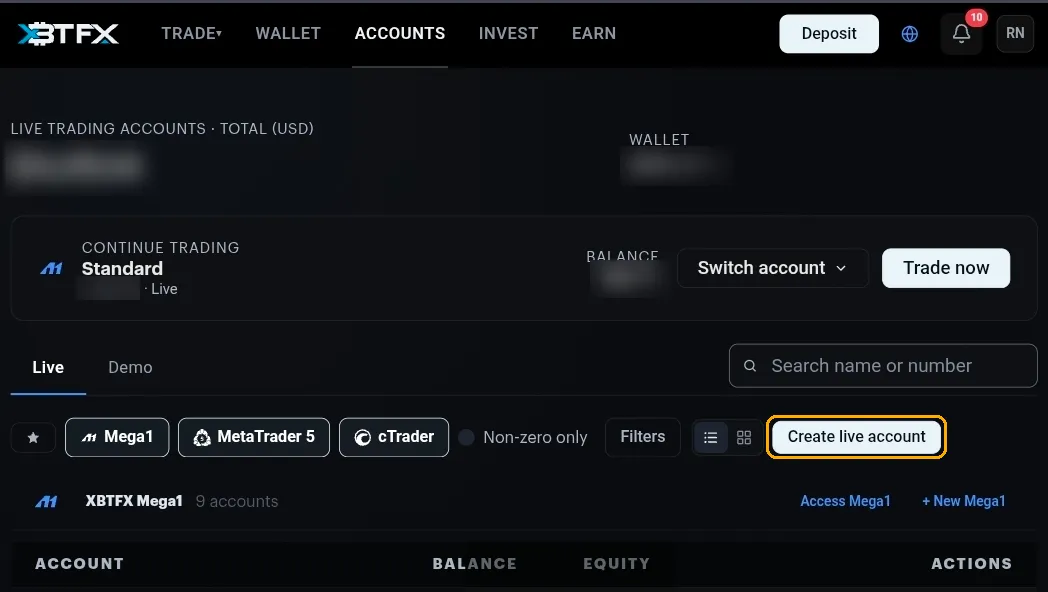
Each platform section also has its own shortcut, + New Mega1 or + New MT5, which opens the same form with that platform already selected.
The form
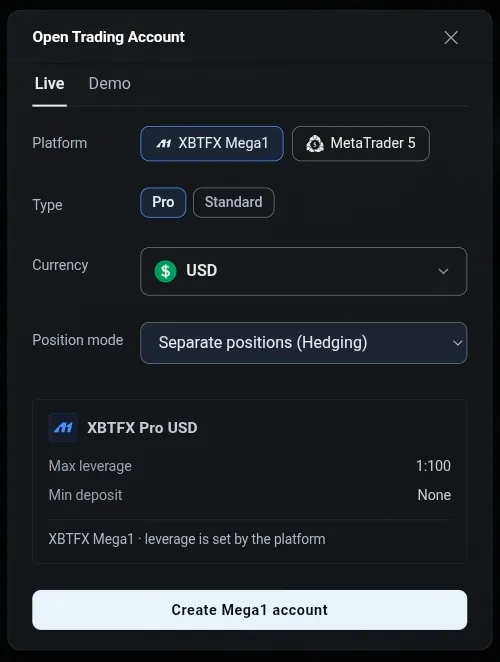
You pick four things, and the tabs above them decide whether the account is live or demo.
- Platform: XBTFX Mega1 or MetaTrader 5.
- Currency: the currency the account is held in.
- Type: Pro or Standard.
- Position mode: how positions on the same symbol behave.
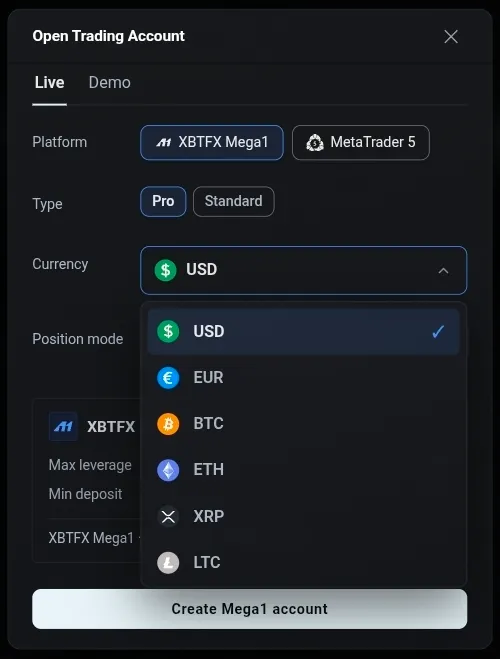
Currency
Ten options, and they mix fiat, crypto and metal:
| Fiat | USD, EUR |
| Crypto | BTC, ETH, XRP, LTC, SOL, USDT, USDC |
| Metal | XAU, which is gold |
This is the account’s base currency. Your balance, your profit and your loss are all measured in it, whatever you happen to be trading. Pick the one you think in. If you want a second base currency later, open a second account rather than trying to convert this one.
Position mode
Separate positions (Hedging) lets you hold a buy and a sell on the same symbol at the same time, and they sit in the list as two positions. The alternative combines them, so a sell against an open buy reduces or closes it instead of opening anything new.
Which one suits you depends on how you trade. You choose it when you open the account, so open one of each if you want to try both. The developer documentation goes through the difference properly.
Demo accounts
The Demo tab is the same form with virtual funds and no deposit. Same platforms, same types, same currencies. The button at the bottom changes to Create demo account.
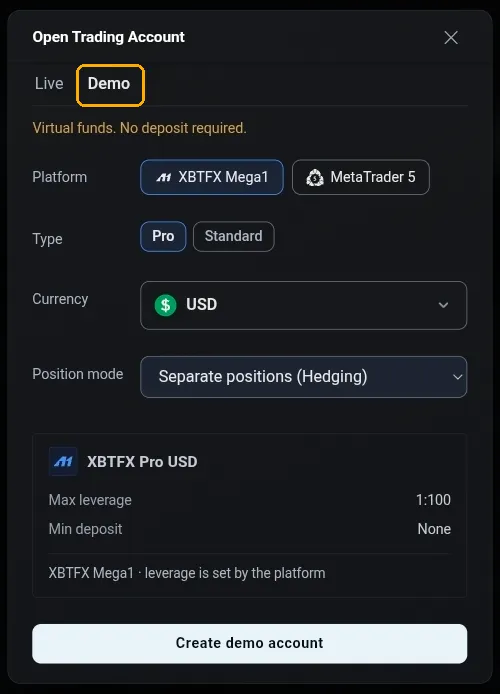
Demo accounts live under the Demo tab on the accounts page, separate from your live ones, so there is no chance of sending real money to one by accident.
What you get back
The confirmation is different for each platform, and the difference matters.
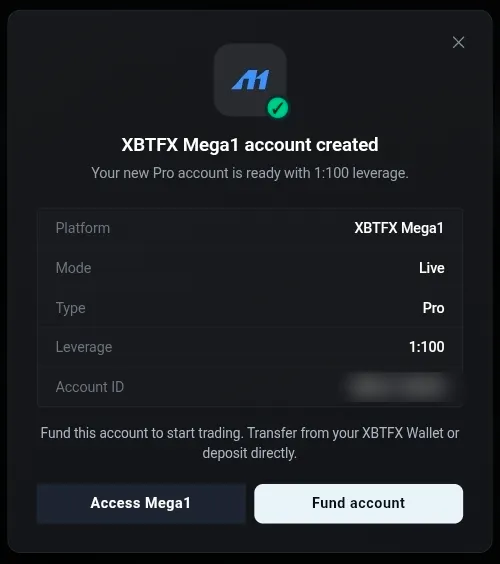
Mega1
You get a summary and an account ID beginning with MEGA-. There is no
password, because you open Mega1 from the portal.
MetaTrader 5
You get the product name, your login number and the server,
XBTFX-MetaTrader5 (mt5.xbtfx.com). You need all three plus the password to
sign in to the MT5 app.
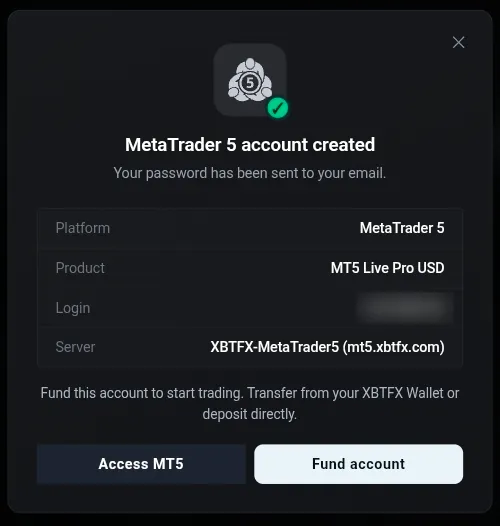
The MT5 password only arrives by email
It is not shown in the dialog and it is not stored anywhere in the portal. The email arrives under the subject line about your MetaTrader 5 account being ready, with the login, the environment and the password together. If it has not appeared after a few minutes, check your spam folder before you open another account.
Funding it
A new account opens with a zero balance, so there is nothing to trade with until you put something in it. Fund account on the confirmation, or Fund on the account’s row later, both take you to the same place.
The money can come from your XBTFX wallet with a transfer, or you can deposit straight to the trading account.
Living with several accounts
Back on Accounts, each row carries its own actions: Trade, Access, Fund and Withdraw. A MAM managed account has no Trade action, because the manager trades it and you do not.
An account that is copying a strategy is different. It keeps Trade, and you can place and close your own positions in it alongside the copied ones.
The search box takes a name or an account number, which is faster than scrolling once you have a few. Non-zero only hides the empty ones.
If something goes wrong
Use the chat widget. Support can see the account on their side, including whether the MT5 welcome email was actually sent.