
Deposit Crypto
Send coins from an outside wallet or an exchange to an address we generate for you. It can land in one of your wallets, or go straight to a trading account.
Send only the coin and the network shown on the panel. A coin sent over the wrong network can be lost for good.
The steps
- Sign in to the XBTFX Portal and open Wallet.
- Select Deposit, then Crypto deposit.
- Pick a destination tab, To wallet or To trading account.
- Choose the destination under Deposit to.
- Choose the coin under Deposit with.
- Choose the Network.
- Tick the I’ll send … on … box to reveal the address.
- Copy the address, or scan the QR code with your phone.
- Send from your own wallet or exchange, on that same network.
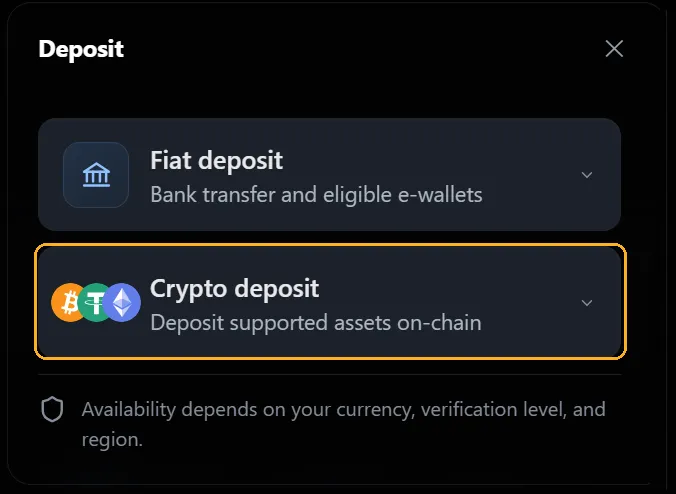
Choosing the destination
- To wallet credits a currency wallet. The wallet does not have to match the coin: USDT into your USD wallet arrives as USD, USDT into your USDT wallet stays USDT.
- To trading account credits an account directly, converted to the account currency. No transfer needed afterwards.
- Either way the panel states the outcome, as USDT arrives as USD.
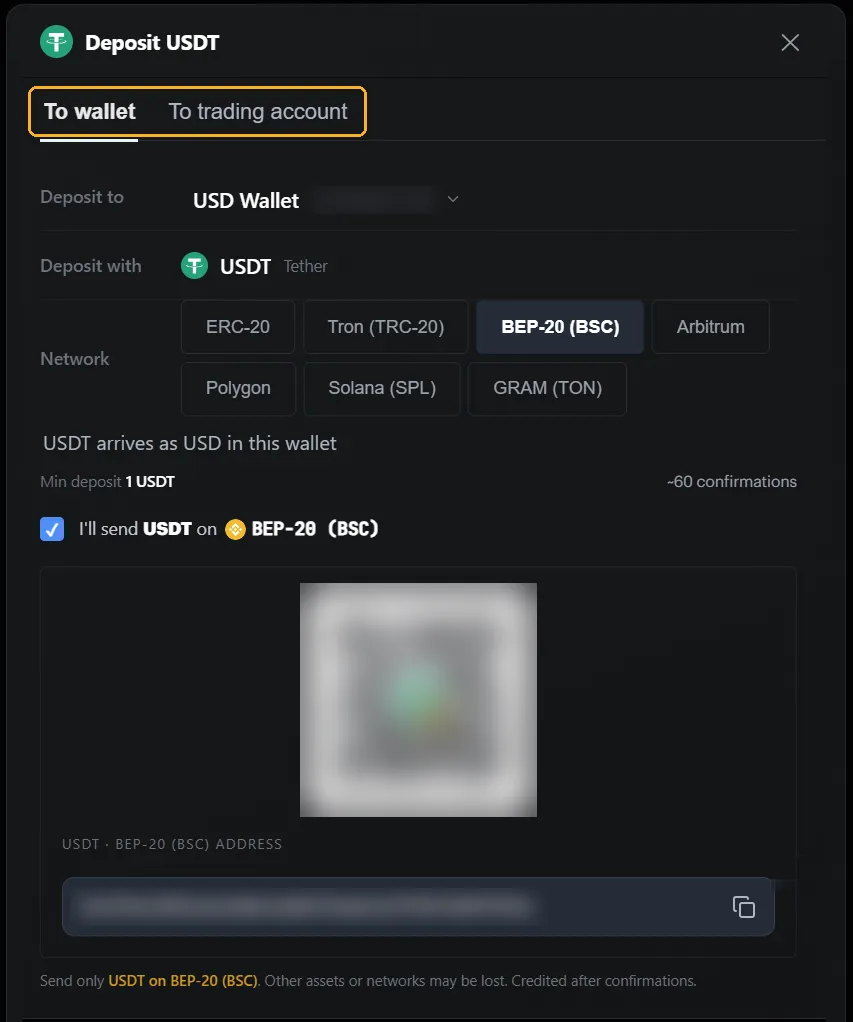
Choosing the coin and network
| Group | Available |
|---|---|
| Stablecoins | EURC, USDC, USDT |
| Crypto | BNB, BTC, DOGE, ETH, GRAM, LTC, POL, SOL, XAU, XRP, ZEC |
- USDT can arrive over ERC-20, Tron (TRC-20), BEP-20 (BSC), Arbitrum, Polygon, Solana (SPL) or GRAM (TON). Other coins have their own lists.
- Check what your exchange or wallet can send on first, then match it here.
- Min deposit and Confirmations appear once you have chosen, and both change with the coin and the network. USDT over BEP-20 is 1 USDT minimum and around 60 confirmations.
Address safety
Don’t reuse a saved address
- Each address belongs to one destination, one coin and one network.
- USDT to your USD wallet, your USDT wallet and a trading account are three different addresses.
- Copy a fresh one from the panel every time.
- After pasting, check the first and last few characters against the screen. Malware that swaps copied addresses is common.
After you send
- The deposit credits once the network reaches the confirmation count shown.
- Track it under Deposits on the Wallet page.
- Sent to a wallet? Transfer it to a trading account before you can trade with it.
- Sent to a trading account? It is already there, in the account currency.
If it doesn’t show up
- Check the sending side. If the transaction has not confirmed on the network yet, wait.
- Compare its confirmations against the number the panel asked for.
- Check you sent at least the minimum.
- Check the network you sent on matches the panel.
- Check the other destination. A wallet deposit will not appear on a trading account.
Still missing? Open the chat widget with the transaction hash, the coin, the network and the amount.